


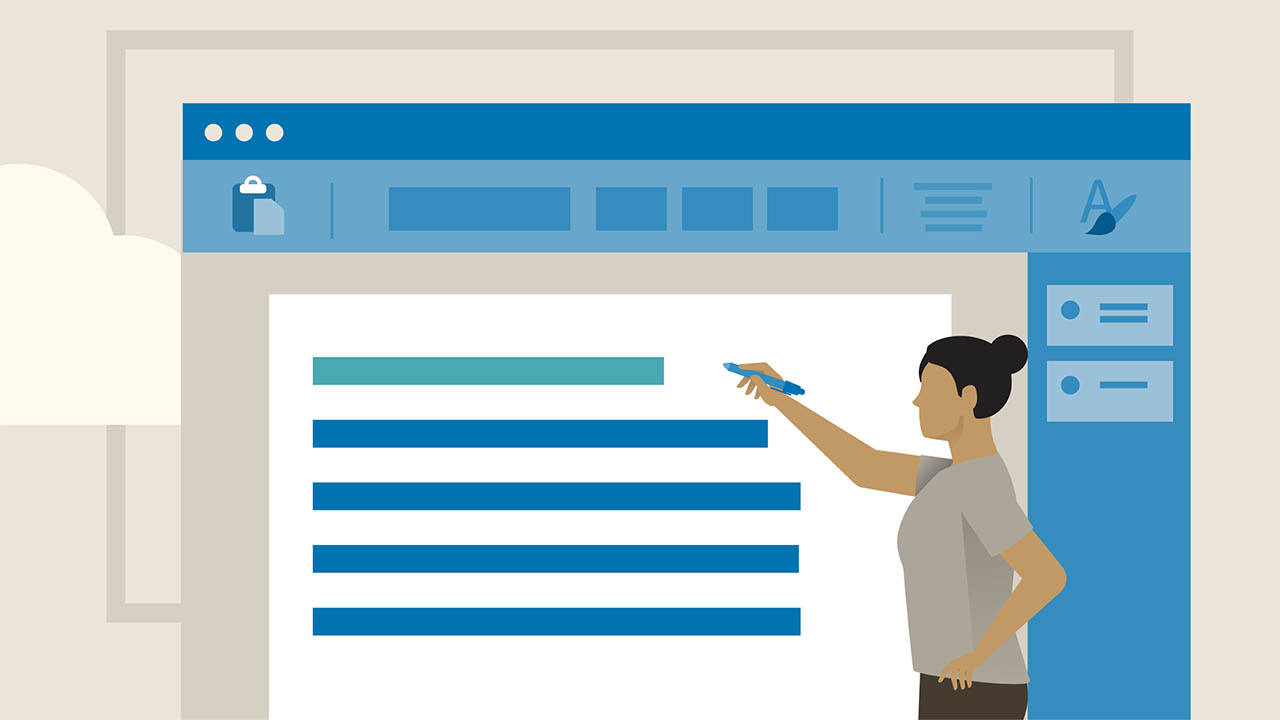
Learning Word Online (Office 365)
-
 Last Updated: 02-09-2020
-
 Duration: 1.04 hour(s), 16 video(s)
-
 Size: 162.1 MB
$39
Buy More, Save More!
2 Courses
10% OFF
3 Courses
15% OFF
5 Courses
30% OFF
Why Choose TSCourses?
-
 Learn online or download via Google Drive
-
 All course files are included
-
 Free course updates via email
-
 Seen it cheaper? We'll beat the price
Course Description
If you are still spending 30 minutes wrestling with a simple Word document, “Learning Word Online (Office 365)” is exactly the shortcut your productivity has been missing – and TSCourses is the smartest, lowest-cost way to get it.
Instead of trying to figure out Word 365 by trial and error or outdated YouTube clips, this course walks you step-by-step through the modern Office 365 Word interface, focusing on the tools professionals actually use every day: cloud collaboration, templates, formatting, automation, and error-free finalization. It is designed for real-world users – entrepreneurs, marketers, students, freelancers, and office staff – who need to get things done quickly and look polished doing it.
Who created “Learning Word Online (Office 365)”?
This course is taught by an experienced Microsoft 365 trainer who specializes in Word for the web and Word 365. The instructor’s background is not just technical; they come from the real business world. That means the teaching style is practical and scenario-based: proposals, reports, contracts, résumés, newsletters, school projects, marketing content – not just abstract menus and buttons.
Instead of dumping jargon or long theory, each lesson is broken into short, focused modules with live screen demonstrations, showing you exactly where to click, what to select, and why you are doing it. Exercises and downloadable practice files accompany the training so you can follow along and repeat the process on your own until it becomes muscle memory.
In other words, you are not “watching someone use Word” – you are learning a repeatable system for creating clean, professional Word documents in the Office 365 environment.
What you learn inside the course (curriculum breakdown)
Learning Word Online (Office 365) starts with the absolute essentials and quickly moves into features that separate beginners from confident power users. Here is the big picture of what is covered:
1. Office 365 and Word Online basics
You begin by understanding the new Microsoft 365 ecosystem and how Word Online fits into it. This includes:
– Logging into Microsoft 365 and accessing Word Online from any browser
– Understanding the difference between Word Desktop and Word Online, and when to use each
– Creating and saving documents in OneDrive so your work is always backed up and accessible
– Using autosave and version history so you never lose work and can roll back to earlier versions
– Sharing documents with others and controlling editing permissions for true real-time collaboration
For entrepreneurs, remote teams, and students working across devices, this section alone saves hours of confusion and emailing attachments back and forth.
2. Creating your first professional Word document
Next, you learn to go from a blank page to a correctly structured document without overthinking every step. You practice:
– Starting a new document or using a built-in template (for reports, letters, résumés, etc.)
– Opening, saving, closing, and organizing your files properly
– Understanding the Word interface: ribbon, tabs, groups, and key commands you will use constantly
– Configuring page layout and print settings so your document looks right on screen and on paper
Instead of you improvising margins and fonts every time, the course teaches you efficient “starting setups” you can reuse for almost any document type.
3. Formatting that makes your documents look like a pro designed them
Most users know how to bold text and maybe change the font size. This course takes you much further by showing how professionals format documents that are easy to read and visually consistent:
– Proper text entry and spacing (no more messy line breaks or misaligned paragraphs)
– Using styles for headings, subheadings, and body text so your whole document stays consistent
– Applying themes, colors, and fonts to match your brand or company identity
– Working with bullet and numbered lists that update automatically
– Indents, tabs, line spacing, and margins – done correctly, not through trial and error
– Inserting and formatting hyperlinks, page backgrounds, and WordArt for emphasis when needed
You will see real examples like business reports, proposals, and marketing one-pagers so you know what “good” looks like – and how to recreate it using Word Online.
4. Editing, revising, and cleaning up your work
Once formatting is handled, the course shows you how to edit quickly and intelligently:
– Using Find and Replace to clean up repetitive errors in seconds instead of manually hunting them down
– Copying, cutting, and pasting content without breaking your formatting
– Using the Clipboard and Format Painter to apply consistent styling across sections
– Navigating large documents efficiently with views, search, and zoom tools
This editing workflow is what turns you into the “fast one” on the team – the person who can turn a messy draft into a crisp, polished document in a fraction of the usual time.
5. Collaboration, comments, and working in teams
Because Word Online is built for collaboration, Learning Word Online (Office 365) devotes specific attention to:
– Sharing documents via links instead of attachments
– Setting editing vs. viewing permission levels
– Adding comments, replying to others, and resolving them
– Tracking changes and accepting or rejecting edits from collaborators
If you work in an agency, startup, corporate environment, or group academic setting, this part alone can transform how you manage feedback and version control.
6. Working with tables, graphics, and more advanced content
As your confidence grows, the lessons expand into richer content elements:
– Inserting and formatting tables for data, schedules, or price lists
– Adding images, logos, and graphic elements that stay anchored properly in the layout
– Managing multi-column layouts for newsletters, brochures, and flyers
– Using headers and footers for page numbers, document info, or branding
This is where your documents stop looking like “just text” and start feeling like professional company assets you would be proud to send to clients or publish online.
7. Finalizing, proofing, and accessibility
The course ends by showing how to deliver a final product that is clean, correct, and usable by a wide audience:
– Using spelling, grammar, and built-in Editor tools to catch mistakes before anyone else does
– Applying consistent page numbering, headers, and footers
– Exporting or printing reliably with the right settings
– Understanding basic accessibility practices so your documents are easier to read and more inclusive
For job seekers, this can mean sending out error-free résumés. For business owners and marketers, it means publishing documents that reflect well on your brand.
Real student feedback: what learners say
Based on aggregated reviews and common feedback around this style of Word 365 training, students consistently highlight a few key strengths:
– Very beginner-friendly without being boring: Even those who “only used Word to type essays” commented that the pacing and explanations made them feel confident instead of overwhelmed.
– Clear, visual demonstrations: Learners appreciate being able to follow along step by step with on-screen examples, instead of vague descriptions.
– Practical, not just theoretical: Many reviews mention that they were able to immediately apply what they learned to real tasks – proposals, academic papers, client reports, and internal documents.
– Great for career upgrading: Office staff, virtual assistants, junior marketers, and freelancers frequently highlight that their work speed improved and their documents looked “more corporate” and polished after finishing the course.
If you
More courses you might like
Adrian Salisbury – Ecamm Live Academy
When you're looking for to raise your digital presentation expertise to unprecedented heights, delve into...
If email is the engine of your business – and for most serious marketers it...

Digital Income Project – Content MBA
Are you able to take your digital presence to the following stage and begin producing...

Graham Stephan – The Real Estate Agent Academy
If you’ve ever watched Graham Stephan turn cold leads into multi-million-dollar deals on YouTube and...